After the adapter has been installed, some configuration is required
to permit the adapter to connect through Windows Service to Microsoft Dynamics AX. To do this, open the Scribe.AxServiceHost.exe.config
file with Notepad and edit the application settings to match your system.
To modify the Scribe.AxServiceHost.exe.config
file:
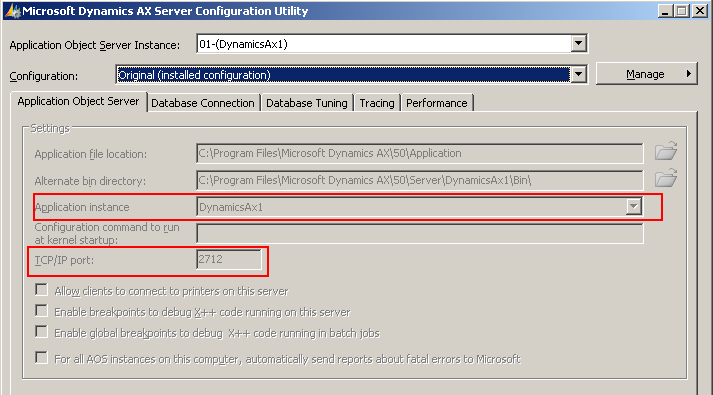
From the server on which the Microsoft Dynamics AX AOS
is installed, open the Microsoft Dynamics
AX Server Configuration Utility window.
Click Start,
point to Administrative Tools,
and click Microsoft Dynamics AX Server
Configuration.
The Microsoft Dynamics AX Server Configuration Utility window appears.
Note the values in the
Application instance and TCP/IP
port fields.
Using Notepad, the Scribe.AxServiceHost.exe.config
file.
(Typically, the file is located in the ..\Scribe\Dynamics
AX Server\ScribeAX Service\ directory of the server on which you installed
the ScribeAdapterforMicrosoftDynamicsAXServer.msi file.)
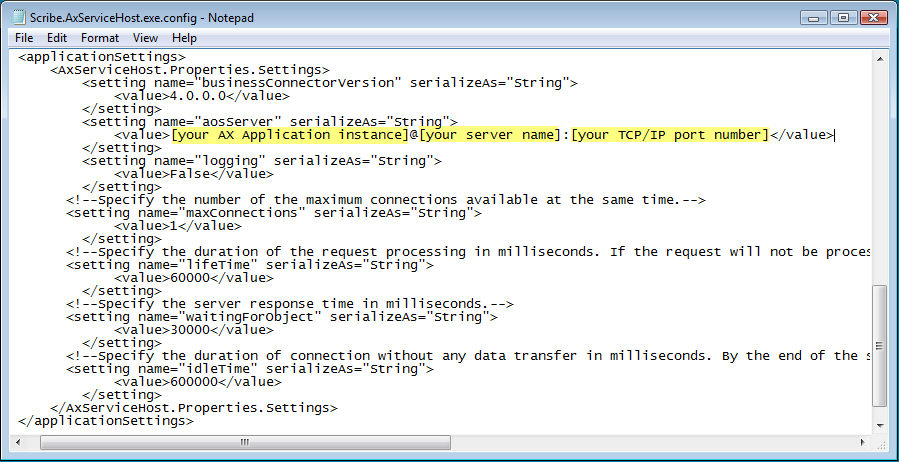
Scroll to near the end of
the file to the <applicationSettings>
section and replace the following values:
Replace [your AX Application
instance] with the value from the Application
instance field.
Replace [your server name]
with the name of your AOS server. LOCALHOST may be
used if your config file resides on the same server
as your AOS service.
Replace [your TCP/IP
port number] with the value from the TCP/IP
port field.
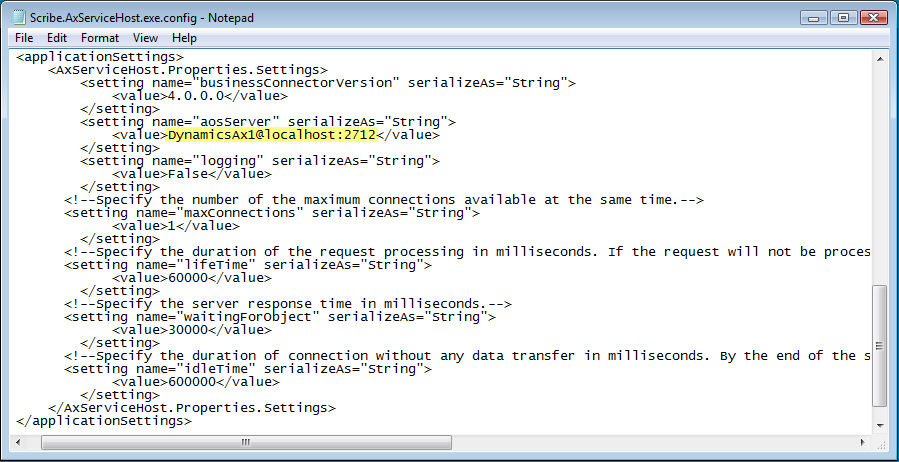
In this example, the final version of the
Scribe.AxServiceHost.exe.config
file would be the following:
Click Start > Administrative Tools > Server
Manager. The Server Manager
window opens.
Restart the Scribe
AxServiceHost service.
Note: The Scribe AxServiceHost
service should be restarted every time the Scribe.AxServiceHost.exe.config
file is changed.